
.jpg?width=2000&name=Panasonic-PRO-NE-SCV3-Lifestyle-Image-2024-unlimited%20rights(26).jpg)
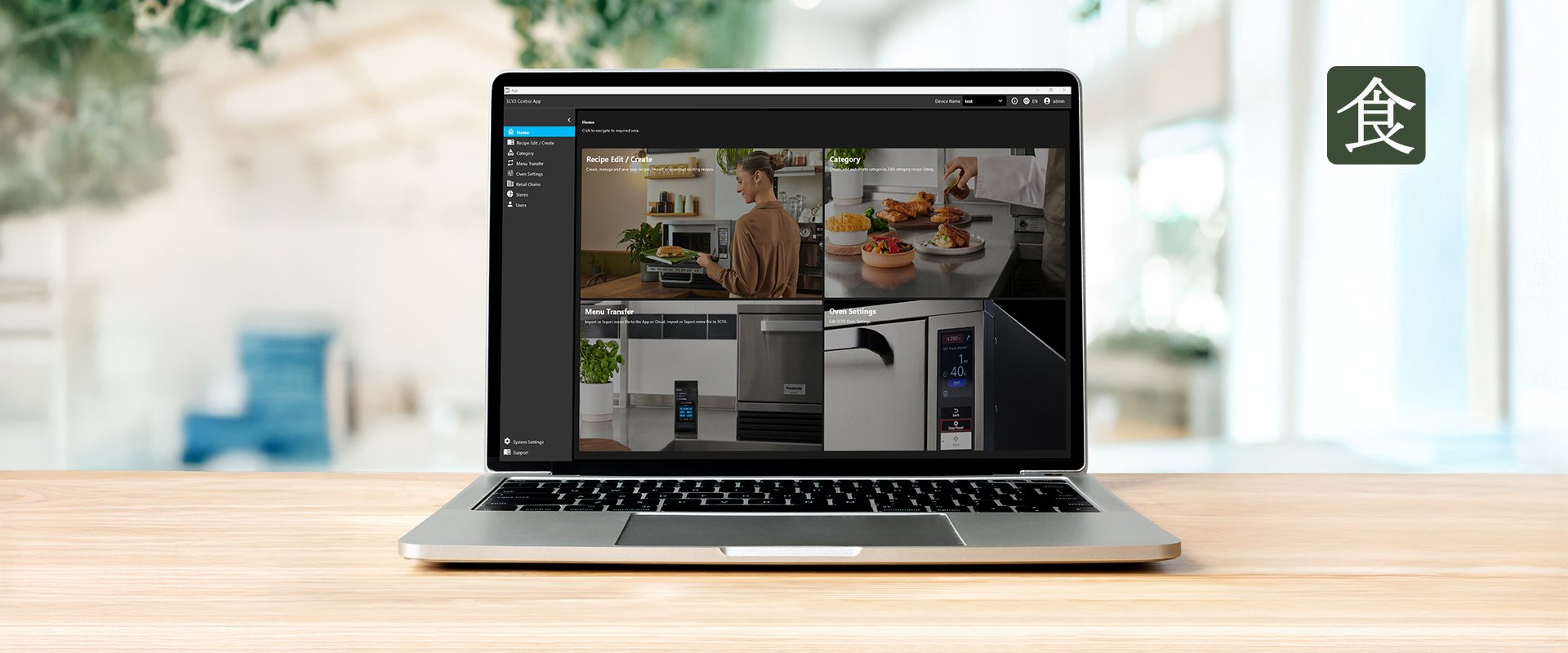
SCV3 Control Hub App
The SCV Control Hub app allows you to easily create, edit, and manage recipes and menu files from anywhere in the world. Update settings for your SCV3 oven and manage the operation of multiple ovens all in one place. Scan the QR code to download the app and register for an account to get started.
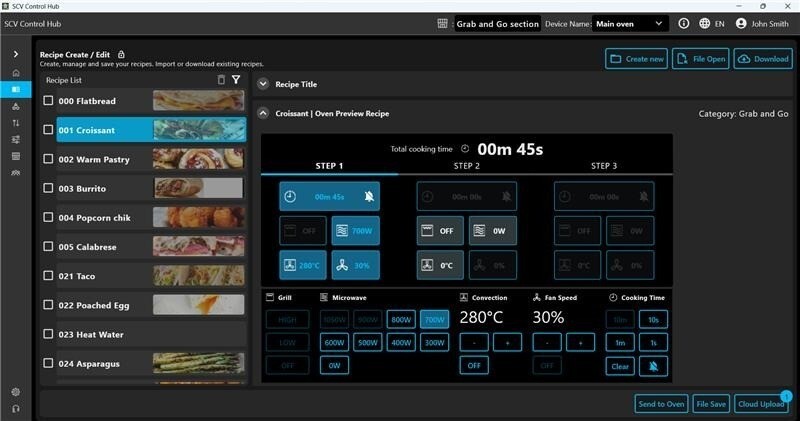
Recipe Management
Create and customise recipes to match your menu. Add names, images, and settings tailored to your needs. Save, upload, and download recipes securely to the cloud for easy access anytime.
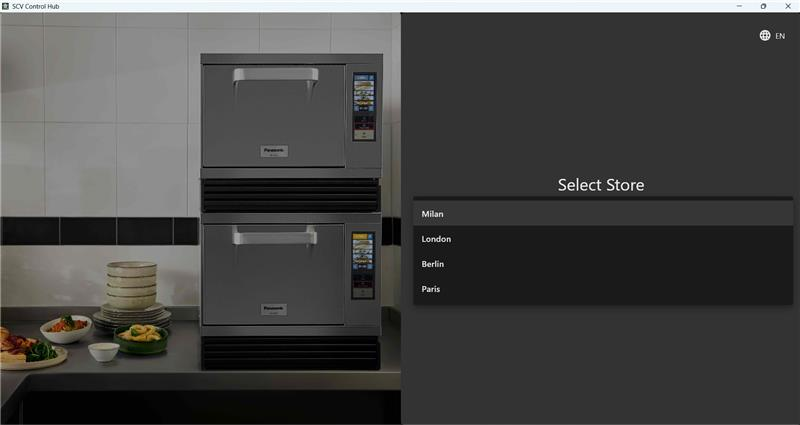
Retail Chain Management
Transfer menus or single recipes to individual ovens within your retail chain. Control and organise effortlessly.
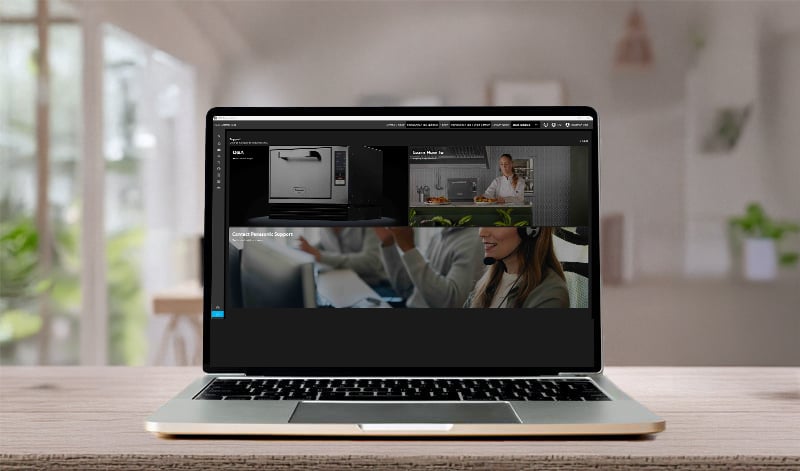
In-App Support
Access support whenever you need it. Get in touch with our team and find product information – all in one place.
.jpg?width=2000&name=Panasonic-PRO-NE-SCV3-Lifestyle-Image-2024-unlimited%20rights(30).jpg)
Menu Transfer via USB
While our app offers the most seamless way to create, manage, and transfer recipes to your SVC3, you can also use a USB stick whenever needed.
Simply store your recipes on a USB drive and import them through the SVC3’s USB port—perfect for quick transfers or offline environments.
.jpg?width=2000&name=Panasonic-PRO-NE-SCV3-Lifestyle-Image-2024-unlimited%20rights(20).jpg)
.jpg?width=2000&name=Panasonic-Professional-Kitchen-NE-SCV3-lifestyle-unlimited-rights%20(7).jpg)
.jpg?width=2000&name=Panasonic-PRO-NE-SCV3-Lifestyle-Image-2024-unlimited%20rights(25).jpg)
.jpg?width=2000&name=Panasonic-PRO-NE-SCV3-Lifestyle-Image-2024-unlimited%20rights(18).jpg)
.jpg?width=2000&name=Panasonic-PRO-NE-SCV3-Lifestyle-Image-2024-unlimited%20rights(10).jpg)
.jpg?width=2000&name=Panasonic-PRO-NE-SCV3-Lifestyle-Image-2024-unlimited%20rights(11).jpg)
.jpg?width=2000&name=Panasonic-PRO-NE-SCV3-Lifestyle-Image-2024-unlimited%20rights(38).jpg)